
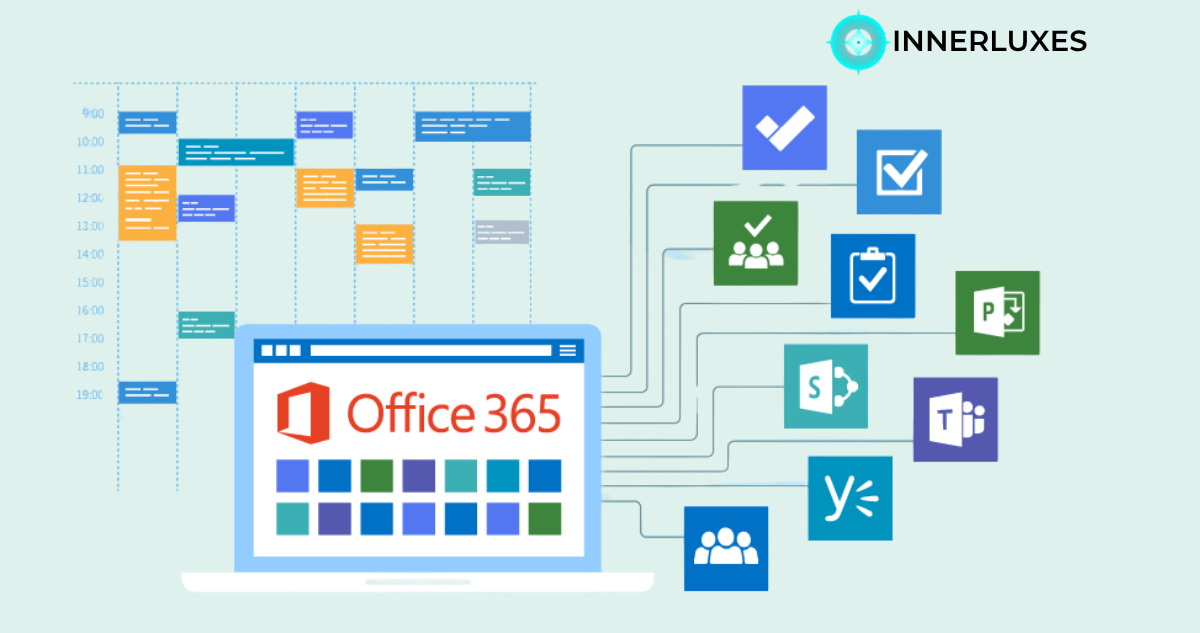
Editor’s Note: Office 365 has quietly become more than just a productivity suite. When used right, it can genuinely change how teams work together. This article reflects a practical, real-world perspective on making that shift smooth and effective.
Office 365 project management is no longer just an option—it’s becoming the way modern teams stay organized and connected. If you’ve ever struggled with scattered tools or missed updates, you already know how frustrating project coordination can feel. The good news is that everything you need might already be in your toolkit.
When you start using Office 365 for managing projects, you bring your team into one shared space. It’s not just about tracking tasks; it’s about creating clarity, improving communication, and helping everyone move forward with confidence. You don’t need complicated systems—you need smart usage.
Why Office 365 Works So Well for Project Management
Office 365 brings together tools that naturally fit into your workflow. Instead of switching between apps, you get a connected environment where everything flows smoothly.
With tools like Teams, Planner, and SharePoint, you can manage communication, assign tasks, and store documents without friction. This reduces confusion and keeps everyone aligned.
Another big advantage is real-time collaboration. You and your team can work on the same files, track updates instantly, and avoid version conflicts. It feels less like managing and more like working together naturally.
Key Tools You Should Be Using
To get the most out of Office 365 project management, you need to focus on the right tools. Each one plays a specific role in keeping your projects organized.
- Microsoft Teams: Central hub for communication and collaboration
- Microsoft Planner: Simple task management with visual boards
- SharePoint: Secure document storage and team collaboration
These tools are powerful on their own, but together they create a seamless system. You don’t need to overcomplicate things—just use them consistently.
How to Set Up a Smooth Workflow
Getting started is often the hardest part, but it doesn’t have to be. You just need a simple structure that your team can follow easily.
Start by creating a dedicated Team for your project. This becomes your central space for communication. Then, use Planner to break the project into tasks and assign responsibilities clearly.
Store all project documents in SharePoint so everyone has access to the latest files. This removes the need for endless email chains and ensures transparency across the team.
Keep Everything Connected
The real strength of Office 365 lies in integration. When your tools are connected, your workflow becomes smoother.
For example, you can link Planner tasks directly inside Teams. This means your team can discuss tasks and update progress without leaving the conversation. Small changes like this save time and reduce friction.
Common Mistakes to Avoid
While Office 365 is powerful, using it incorrectly can create confusion instead of clarity. Many teams make the mistake of using too many tools at once.
Keep things simple. Focus on a core set of tools and build your workflow around them. Avoid duplicating tasks across platforms, as this leads to miscommunication.
Another mistake is lack of structure. If you don’t define how your team should use each tool, people will use them differently. This creates inconsistency and slows everything down.
Frequently Asked Questions
It’s using Office 365 tools like Teams and Planner to plan, track, and manage projects.
Yes, for simple to medium projects, Planner works well with Teams.
Absolutely, it’s perfect for small teams needing simple collaboration.
It centralizes communication, meetings, and task discussions in one place.
Yes, it helps store and organize files securely for easy access.
For many teams, yes—it offers enough features without extra tools.
Use Planner boards and task updates to monitor progress visually.
Yes, it supports real-time collaboration from anywhere.
Summary
Office 365 project management gives you a simple yet powerful way to bring your team together. You don’t need complicated systems to get results—just the right tools used in the right way. When everything is connected and clear, your projects move faster, your team stays aligned, and your work feels more manageable every day.
Have a question? Ask our experts!
Our team is ready to help you build something great.
Let's Talk →Explore Our Services at INNERLUXES